
リモートBox MCPサーバー
リモートBox MCPサーバー
リモートBox MCPサーバーは、AIエージェントがBoxなどのサードパーティ製アプリケーションに接続して操作するための標準的な方法で、プラットフォーム間でのコンテンツやAI機能へのシームレスなアクセスを可能にします。Box MCPサーバーは、主要なAIエージェントプラットフォーム (Copilot Studio、Claude Enterprise、Mistral Le Chatなど) が未加工のファイルコンテンツを公開することなく、BoxのデータやAIを活用したツールを安全に照会および利用できるようにする橋渡しの役割を果たします。OAuth承認により、ユーザーは、自身のBoxアカウントへの制限付きアクセスをAIエージェントに許可することができるため、このような外部のAI環境内で直接、インテリジェントなドキュメント処理、高度な検索、複数ファイルのAIクエリが可能になります。
あらかじめ定義されたBox MCPサーバーにアクセスして管理する
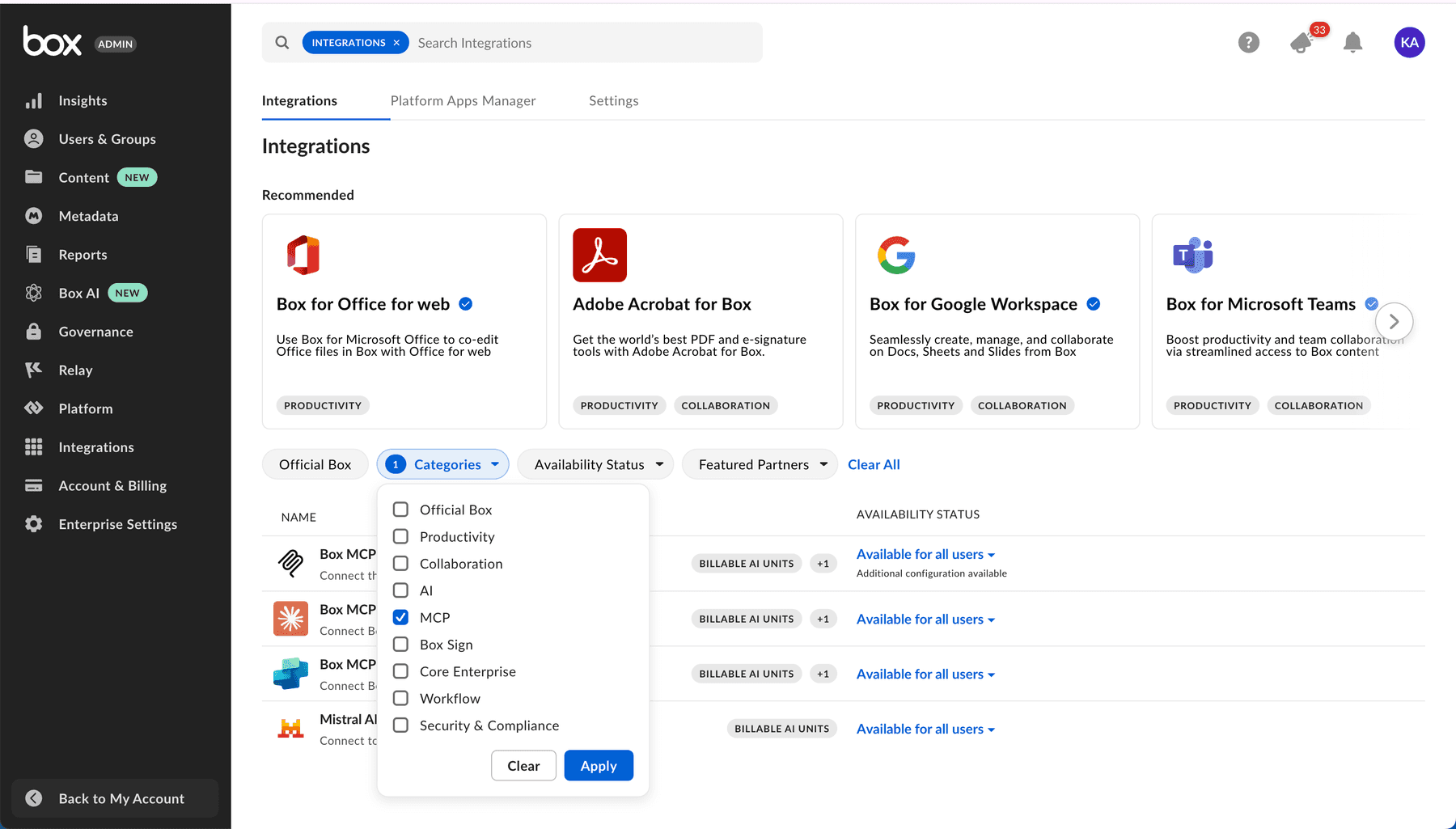
- Box管理コンソールのサイドバーにある [統合] をクリックします。
- [カテゴリ] フィルタを使用して [MCP] を選択するか、ウィンドウ上部にある検索フィールドであらかじめ定義されたBox MCPサーバーを検索します。
- 選択したMCPサーバーの横にある状態をクリックし、有効にする状態を選択します。
リストに記載されていないBox MCPサーバーを作成する
- Box管理コンソールのサイドバーにある [統合] をクリックします。
- ウィンドウ上部にある検索フィールドでBox MCP Serverを検索します。
- [Box MCP Server] アプリケーションにカーソルを合わせ、[構成] をクリックします。
- [追加の構成] セクションで [+ 統合資格情報を追加] をクリックします。
- 統合名を入力し、[保存] をクリックします。
- 新しく作成したエントリの詳細を展開します。
- 生成されたクライアントIDとクライアントシークレットをコピーします。
- 外部MCPクライアントから提供されたリダイレクトURIを入力します。
- [アクセススコープ] で [コンテンツ操作] を有効にします。
クライアント側でBox MCPサーバーを追加する
Box MCPサーバーを追加するための正確な手順はAIプラットフォームによって異なる場合があります。クライアント側での設定手順については、お使いのプラットフォームのドキュメントを参照してください。参考までに、次のサンプルコードを確認してください。
AIエージェントプラットフォームからBoxに接続するには、以下の操作を行う必要があります。
- エンドポイントURLを追加する:
https://mcp.box.com - クライアントIDとクライアントシークレットを渡す。これらは、上記のBox MCPサーバーの構成時に管理コンソールの統合資格情報のセクションで生成されます。
- MCP名を渡す:
box-remote-mcp authorization_tokenを指定する
response = await client.beta.messages.create(
    model="claude-3-opus-20240229",  # Or your preferred model
    max_tokens=4096,
    messages=conversation_history,
    mcp_servers=[
        {
            "type": "url",
            "url": "https://mcp.box.com",
            "name": "box-remote-mcp",
            "authorization_token": BEARER_TOKEN,
        }
    ],
    betas=["mcp-client-2025-04-04"]
)
Claude
ClaudeでリモートBox MCPサーバーの使用を開始するには、Claudeアプリの設定に移動し、[Connectors (コネクタ)] をクリックします。このビューで [Browse connectors (コネクタを参照)] をクリックして [Box] を選択し、ClaudeにBoxへのアクセスを許可します。
Box MCPをClaudeデスクトップアプリと関連付ける方法を紹介するデモ動画をご確認ください。
Copilot Studio
リモートBox MCPサーバーを追加するには、Copilot Studio側が提供する手順に従います。詳細な手順とガイダンスは、こちらのMicrosoftの公式ドキュメントで確認できます: Add an MCP Server in Copilot Studio
Azure API Center
Azure API CenterのEnterprise RegistryにリモートBox MCPサーバーを追加するには、Azureが提供する手順に従います。詳細な手順とガイダンスは、こちらのMicrosoftの公式ドキュメントで確認できます: Add an MCP Server in Azure API Center's Enterprise Registry
Amazon Quick Suite
Amazon Quick SuiteでリモートBox MCPサーバーを追加するには、以下の手順に従います。
- Amazon Quick Suiteコンソールで、[Integrations (統合)] を選択し、[Model Content Protocol] を選択して新しい統合を作成します。
- [Create integration (統合の作成)] ページで、名前と説明を入力します。
- MCPサーバーのエンドポイントを
https://mcp.box.comに設定します。 - 自動公開を選択して、個人利用向けに統合をすぐに提供します。
- [Next (次へ)] をクリックし、認証方法を選択して、必要な構成を指定します。
- OAuthの場合、Box MCPサーバーの構成時にBox開発者コンソールで作成したクライアント資格情報を使用します。
- トークンURLを追加します:
https://api.box.com/oauth2/token。 - 承認URLを追加します:
https://account.box.com/api/oauth2/authorize。 - Amazon Quick SuiteのリダイレクトURIがBox Platformアプリの設定で許可リストに登録されていることを確認します。
- Boxへのアクセスを許可します。
- [Create and continue (作成して続行)] を選択し、統合を確認して、[Next (次へ)] を選択します。必要に応じて、統合を他のユーザーと共有します。
詳細については、Amazon Quick SuiteドキュメントのModel Context Protocol (MCP) integration (英語) を参照してください。
AnthropicのMessages API
リモートBox MCPサーバーをAnthropicのMessages APIと関連付けます。こちらのサンプルチャットボットプロジェクトを複製すると、すぐに作業を開始できます。これにより、Anthropicモデルとの会話が可能になり、BoxのリモートMCPサーバーが提供するツールにアクセスできます。
リモートBox MCPを利用しているReactベースのチャットボットのデモプロジェクトを紹介する動画をご覧ください。
Mistral AIのLe Chat
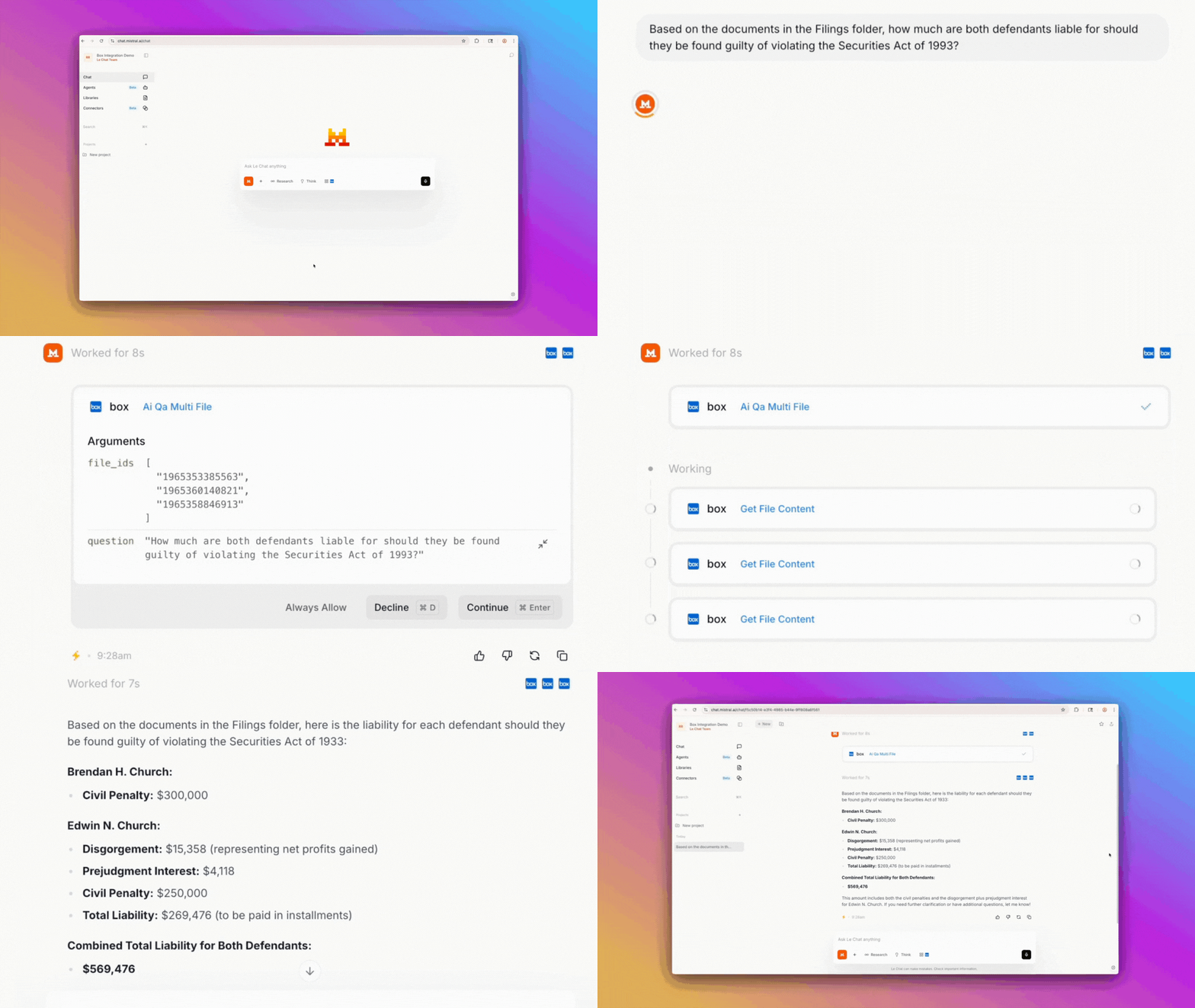
Mistral AIのLe Chatに対してBox MCPを有効にするには、コネクタのページにアクセスし、[Connect (接続)] をクリックして、Boxへのアクセスを許可します。または、チャットビューから直接、[Tools (ツール)] をクリックして [Box] を選択します。
GitHub Copilot
GitHub Copilotを使用してBox MCPサーバーを設定するには、概要ページに移動して、[Install MCP server (MCPサーバーをインストール)] をクリックします。VS Codeエディタにリダイレクトされたら、[Install (インストール)] をクリックし、OAuthを完了してBoxへのアクセスを許可します。
手動でクライアントIDとクライアントシークレットを入力することが必要になる場合があります。OAuthアプリケーションの登録時に、次のリダイレクトURIを含めるようにしてください。
http://127.0.0.1:33418
https://vscode.dev/redirect
MCPサーバーでのBox AIの機能の使用
サードパーティ製アプリケーションでBox AIを使用すると、Box MCPサーバー経由でアプリケーションにアクセスするため、最適なエクスペリエンスと質の高い結果を得ることができます。これにより、すべての機能、パフォーマンスの向上、シームレスなユーザーエクスペリエンスが実現します。
利用可能なツール
リモートBox MCPサーバーでは、AIエージェントがBoxのコンテンツや機能を操作できるようにする包括的な一連のツールへのアクセスを提供します。これらのツールは、ユースケースに適切な機能をすばやく特定できるように、機能カテゴリ別に分類されています。
ユーザーと認証
ユーザー認証を管理したり、認証済みユーザーに関する情報を取得したりします。
| ツール | 説明 |
|---|---|
who_am_i | 現在認証されているBoxユーザーの詳細な情報を返します。 |
コンテンツ管理
ファイルやフォルダの管理、検索の実行、Box環境でのコンテンツ操作の処理を行います。
ファイル操作
| ツール | 説明 |
|---|---|
get_file_content | Boxに保存されているファイルのコンテンツを返します。 |
get_file_details | メタデータ、権限、バージョンの詳細など、Boxからファイルの包括的な情報を取得します。 |
update_file_properties | ファイルのプロパティ (名前、説明、タグ、コレクション) を更新します。 |
upload_file | 新しいファイルをBoxにアップロードします。 |
upload_file_version | ファイルコンテンツ全体を提供してBox内の既存のファイルを更新することで、新しいファイルバージョンをアップロードします。 |
フォルダ操作
| ツール | 説明 |
|---|---|
create_folder | Box内に新規フォルダを作成します。 |
get_folder_details | メタデータ、権限、コラボレーション設定など、フォルダの包括的な情報を取得します。 |
list_folder_content_by_folder_id | フォルダ内のファイル、フォルダ、ウェブリンクのリストを取得します。 |
update_folder_properties | フォルダのプロパティ (名前、説明、タグ、コレクション) を更新します。 |
検索
| ツール | 説明 |
|---|---|
search_files_keyword | キーワードを使用してファイルを検索します。メタデータフィルタ、ファイル拡張子によるフィルタ処理、フィールドの選択がサポートされています。 |
search_folders_by_name | キーワードの照合を使用して、名前でBox内のフォルダを検索します。 |
Box AI
AIを活用したツールを使用して、質問、インサイトの抽出、ファイルやHubでのコンテンツの分析を行います。
| ツール | 説明 |
|---|---|
ai_qa_hub | Box AIを使用してBox Hubに質問します。 |
ai_qa_single_file | Box AIを使用して単一のファイルに質問します。 |
ai_qa_multi_file | Box AIを使用して複数のファイルに質問します。 |
ai_extract_freeform | Box AIを使用して、ファイルから自由形式でメタデータを抽出します。あらかじめ定義されたテンプレート構造は必要ありません。 |
ai_extract_structured | Box AIを使用して、ファイルから、カスタムフィールドの定義または既存のメタデータテンプレートに基づいて構造化メタデータを抽出します。 |
コラボレーション
コメント、共有リンク、コラボレーション管理ツールによるチームのコラボレーションを可能にします。
| ツール | 説明 |
|---|---|
create_file_comment | 特定のファイルに新しいコメントを作成します。 |
list_file_comments | 特定のファイルのすべてのコメントのリストを取得します。 |
list_tasks | 特定のファイルに関連付けられたすべてのタスク (ステータス、メッセージ、期日を含む) のリストを取得します。 |
Hub
特定のトピックやプロジェクトに関するコラボレーションコンテンツやリソースを整理するためのBox Hubsを作成および管理します。
| ツール | 説明 |
|---|---|
add_items_to_hub | 特定のHubにファイル、フォルダ、またはウェブリンクを追加します。 |
create_hub | 新しいHubを作成します。 |
get_hub_details | 特定のHubに関する詳細情報を取得します。 |
get_hub_items | 特定のHubに関連付けられた項目 (ファイルおよびフォルダ) を取得します。 |
list_hubs | 認証済みユーザーがアクセス可能なすべてのHubのリストを取得します。 |
update_hub | 特定のHubのタイトルと説明を更新します。 |